How to Upload Guests in Bulk to Your Invitation Website
By Link of Time • Published Feb 14, 2026 • Updated Mar 08, 2026
Managing a long guest list doesn’t have to be time-consuming—or chaotic. Whether you’re planning a wedding, corporate event, or large celebration, manually adding guests one by one can slow you down and increase the chance of errors. That’s why bulk guest upload is one of the most powerful tools available on Link of Time.
In this guide, you’ll learn how to upload guests in bulk to your invitation website, the different upload options available, and how bulk uploads streamline guest management while keeping RSVP tracking accurate and organized.
Why Bulk Guest Upload Matters for Events
When dealing with dozens—or even hundreds—of guests, efficiency is everything. Bulk guest upload allows you to:
- Add many guests at once
- Reduce manual data entry mistakes
- Instantly prepare personalized invitation links
- Keep all guest records centralized
This feature works hand-in-hand with centralized guest tracking, ensuring every response is tied to the correct guest record.
Where to Find the Bulk Upload Option
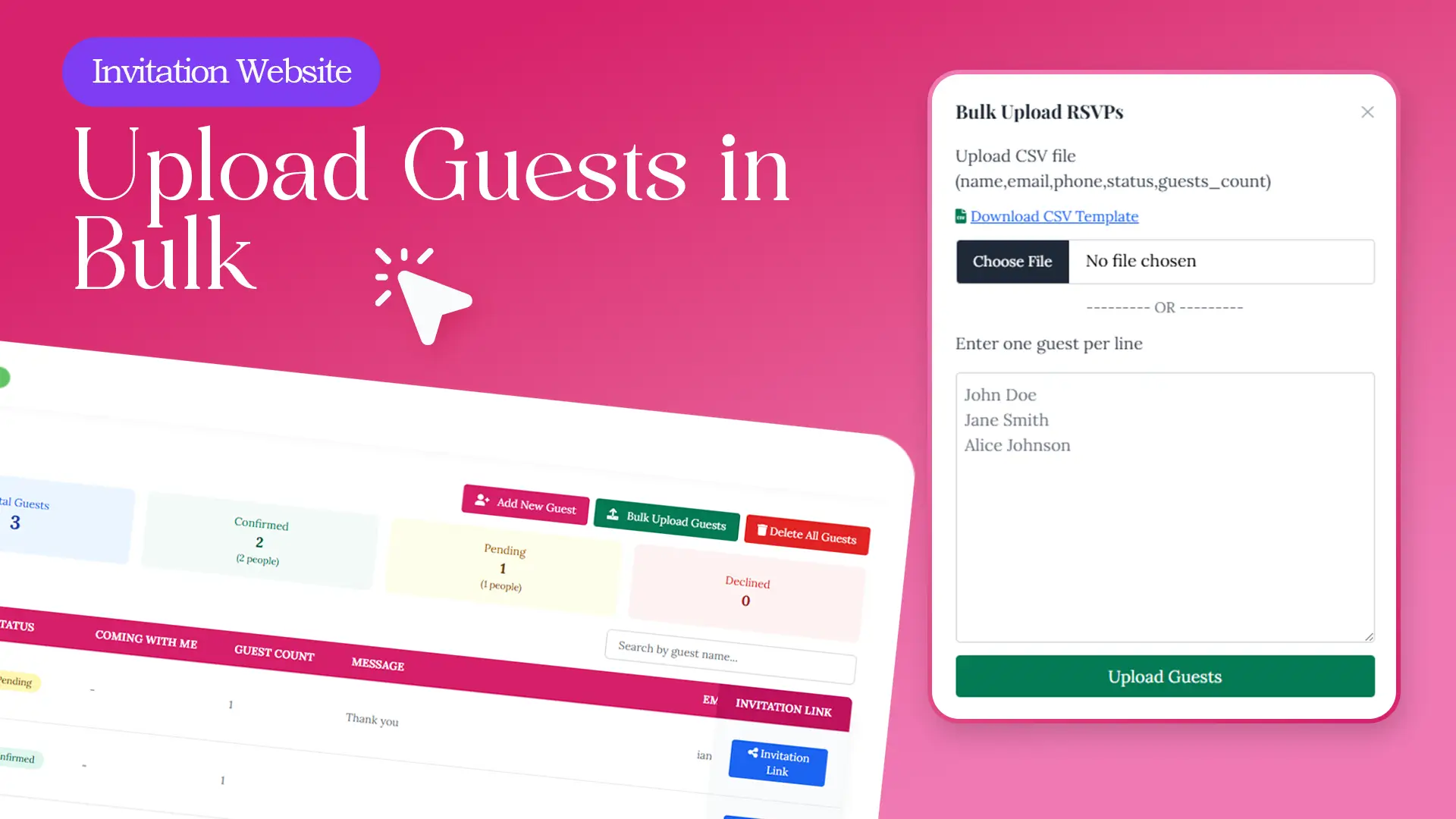
Once your invitation website is live, head to your event management dashboard. At the top of the guest list table, you’ll see a “Bulk Upload” button.
Clicking this button opens the bulk upload modal, where you can add guests quickly using one of two flexible methods.
Method 1: Upload Guests Using a CSV File
CSV uploads are ideal for structured guest lists exported from spreadsheets or contact tools.
How It Works
- Click Bulk Upload at the top of the guest list
- Choose Upload CSV file
- Use the provided CSV format:
- Upload your file and submit
You can also download a ready-made CSV template directly from the modal to ensure formatting accuracy.
💡 According to Zapier, CSV files remain one of the most reliable formats for bulk data imports due to their simplicity and compatibility.
Method 2: Add Guests Using Text Input
Don’t have a spreadsheet ready? No problem.
The bulk upload modal also allows you to paste guest names manually, one per line.
Best Use Cases
- Early-stage planning
- Quick imports from notes or messages
- Informal or private events
Simply paste names into the text area, submit, and Link of Time will automatically create guest records for each entry.
What Happens After Guests Are Uploaded
Once uploaded, guests immediately appear in your guest list table with:
- Name
- Role
- RSVP status
- Guest count
- Contact details
- Message field
- Personalized invitation link
Each row includes an Invitation Link button, allowing you to instantly copy and share a unique link for that guest. This ties directly into personalized guest experiences.
How Bulk Upload Improves RSVP Accuracy
Bulk uploading doesn’t just save time—it improves data quality.
Automatic Record Matching
If a guest later opens a non-personalized invitation link and submits an RSVP, the system intelligently attempts to match them to an existing guest record before creating a new one.
Real-Time Dashboard Updates
Every RSVP submission updates instantly in your event dashboard, eliminating the need for spreadsheets or manual tracking.
Event management experts at Events Calendar note that centralized RSVP systems significantly reduce response errors for large guest lists.
Best Practices for Bulk Guest Upload
- Double-check email spelling before uploading
- Use CSV uploads for large, structured lists
- Use text input for quick additions or last-minute guests
- Upload guests before sending invitations to avoid confusion
Frequently Asked Questions (FAQ
Conclusion: Manage Large Guest Lists With Confidence
Bulk guest upload removes the friction from event planning. Whether you’re importing a full spreadsheet or pasting a quick list of names, Link of Time gives you the tools to stay organized, accurate, and in control.
👉 Upload your guest list in minutes and focus on creating an unforgettable event experience.
Comments
Join the conversation and share your thoughts.
No comments yet
Be the first to share your thoughts.