How to Edit Guest RSVPs as an Event Host
By Link of Time • Published Mar 18, 2026 • Updated Jun 01, 2026
Introduction
Managing guest responses doesn’t always end after the RSVP is submitted. Sometimes guests change their plans, bring an additional companion, or request corrections to their details. As an event host, being able to edit guest RSVPs quickly and accurately ensures your guest list always reflects the latest information.
With Link of Time’s RSVP management system, hosts can easily update guest details, modify RSVP status, or adjust guest counts directly from the event dashboard. This guide explains how to edit guest RSVPs as an event host, when you might need to update them, and how to keep your guest list organized.
Why Editing RSVPs Matters for Event Planning
Even with a well-designed invitation website, changes happen. Guests may:
- Confirm after initially declining
- Bring an additional companion
- Update contact details
- Send special notes or requests
If these updates aren’t reflected in your system, it can affect seating arrangements, catering counts, and overall event coordination.
A centralized RSVP system allows hosts to quickly update responses without creating confusion, which is also discussed in tracking guest responses efficiently.
Where to Edit Guest RSVPs
To edit RSVP details, you need to access your Guest List Table inside the event dashboard.
Simply scroll horizontally to the right side of the table, where you’ll find the Edit and Delete buttons for each guest entry.
This design keeps the guest list clean while still giving hosts full control over guest data.
Step-by-Step: How to Edit Guest RSVPs
Follow these simple steps to update a guest’s RSVP information.
1. Open Your Event Dashboard
Log in to your account and open your event dashboard. If you’re unfamiliar with navigating your guest list, you can review the process in managing your guest list and RSVP statuses.
2. Locate the Guest in the Table
Inside the Guest List Table, you will see each guest along with their RSVP status and details.
Scroll to the right side of the table until you see the Edit button.
Click Edit to open the RSVP editing form.
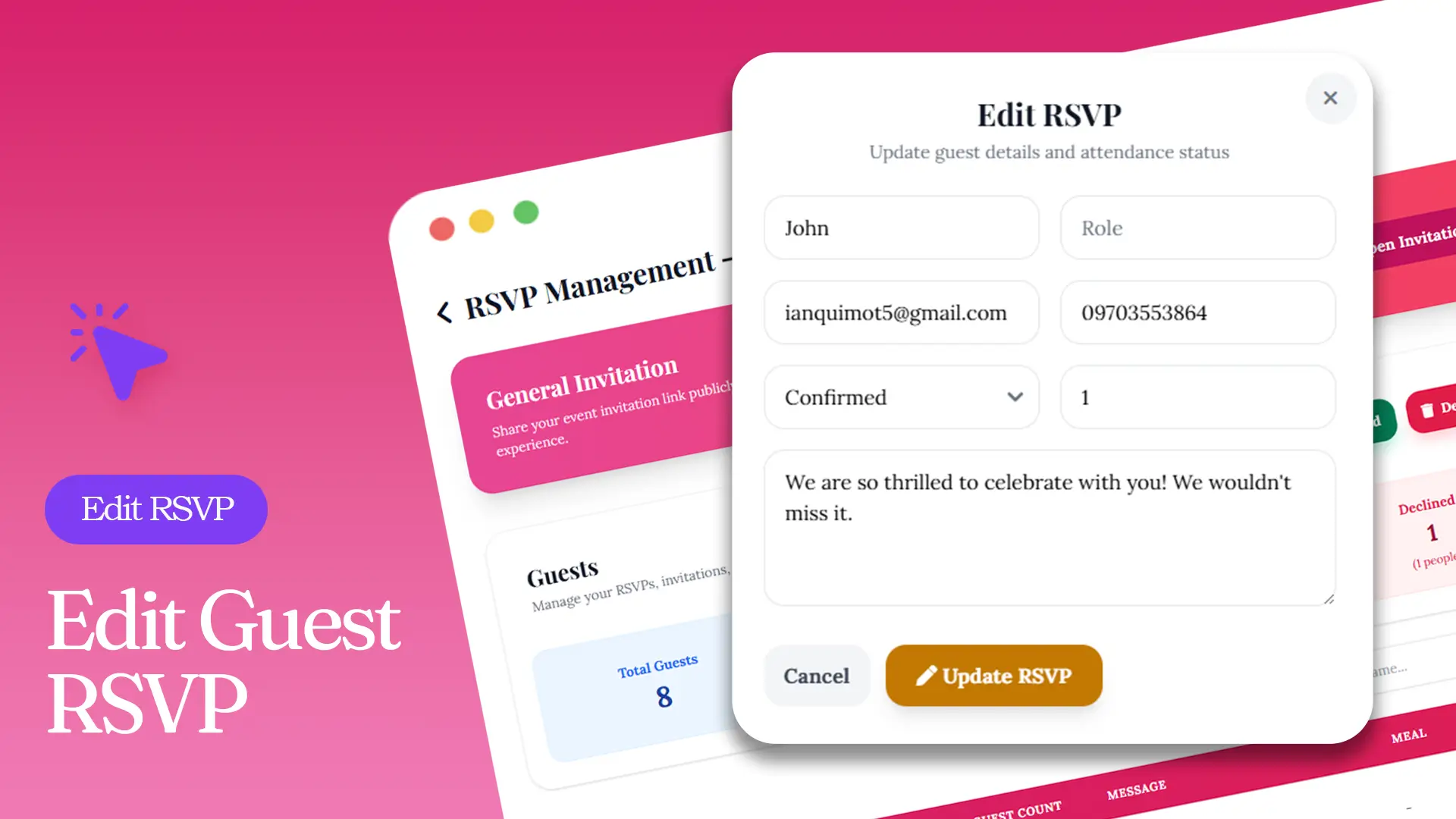
3. Update Guest Information in the Edit RSVP Modal
Once the modal appears, you can update the following information:
Edit RSVP Modal Fields
- Name – Update the guest’s name if there was a spelling correction.
- Role – Indicate their role (for example: bridesmaid, groomsman, family member).
- Email – Update contact email if needed.
- Phone – Add or correct a phone number.
- Confirmed Status – Change whether the guest has confirmed attendance.
- Guest Count – Adjust the number of people attending with this guest.
- Message – Update or add notes from the guest.
After making the necessary changes, click Update RSVP to save the modifications.
The system will automatically refresh the guest list and update the event statistics.
When Hosts Typically Edit RSVPs
Editing RSVP responses is useful in several real-world situations.
Guest Confirms Through Another Channel
Some guests prefer sending confirmations through text or social media instead of the RSVP form. In this case, the host can manually update the guest’s response to Confirmed.
Guest Brings an Additional Person
If a guest informs you that they will bring a companion, simply increase the Guest Count field to reflect the correct number.
Contact Information Needs Correction
Sometimes guests submit incorrect contact details. Editing the RSVP allows you to fix this quickly.
RSVP Status Changes
Plans change. Guests who previously declined may later confirm attendance. Updating their status ensures your event numbers stay accurate.
Tips for Keeping Your Guest List Organized
To make RSVP management easier as your event approaches, consider these simple strategies.
Review your guest list regularly
Check your dashboard weekly to ensure responses are accurate.
Update manual confirmations immediately
If guests confirm through other channels, edit their RSVP right away to avoid forgetting later.
Keep guest roles updated
Assigning roles like “Family,” “VIP,” or “Bridesmaid” helps you quickly identify important attendees.
These small habits help prevent last-minute confusion and ensure your guest list stays reliable.
Helpful External Resource
If you're planning a large event, understanding RSVP etiquette can also help set clear expectations for guests. This guide from The Knot explains how RSVP timelines typically work: https://www.theknot.com/content/wedding-rsvp-wording-ideas
Frequently Asked Questions
Conclusion
Keeping your RSVP list accurate is essential for smooth event planning. With Link of Time’s guest management system, hosts can edit guest RSVPs quickly, update attendance details, and adjust guest counts whenever changes occur.
By regularly reviewing and updating your guest list, you’ll always have a clear view of who’s attending your event.
If you haven’t created your invitation website yet, start today and experience simplified RSVP management built for modern event hosts.
Comments
Join the conversation and share your thoughts.
No comments yet
Be the first to share your thoughts.