How to Add a Countdown Timer to Your Event Website
By Link of Time • Published Feb 16, 2026 • Updated Mar 08, 2026
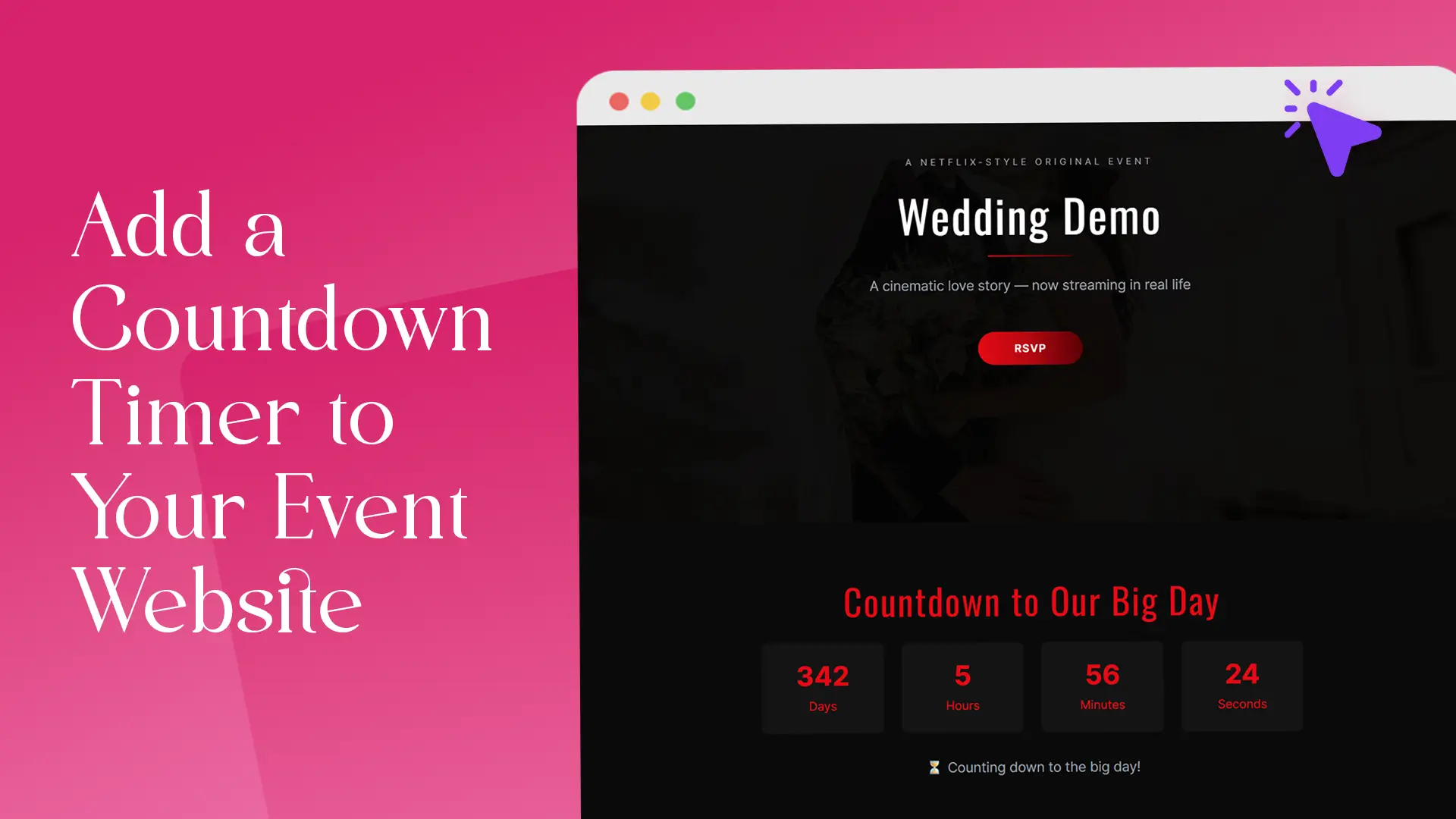
When guests visit your event website, the first question on their mind is simple: “How long until the big day?” A countdown timer answers that instantly—while also building excitement and urgency. The good news? With Link of Time, you don’t need to install plugins or configure widgets. Your event countdown timer is added automatically as part of your invitation website.
In this guide, we’ll walk through how the countdown timer works on Link of Time, how it updates in real time, and how you can use it strategically to boost RSVPs and engagement—without extra effort.
What Is an Event Countdown Timer—and Why It Matters
An event countdown timer displays the days, hours, and minutes leading up to your event. While it may seem like a small feature, it plays a big role in how guests interact with your invitation.
A well-placed countdown timer helps:
A well-placed countdown timer helps:
- Create anticipation for your event
- Encourage guests to RSVP sooner
- Reduce last-minute confusion about event dates
- Keep your event top-of-mind every time guests revisit the page
Marketing studies consistently show that time-based elements increase action by creating urgency, which is why countdowns are widely used across digital campaigns (see this guide on urgency-driven engagement from Campaign Monitor).
How the Countdown Timer Is Added on Link of Time
No Setup Required—It’s Automatic
When you create an invitation website on Link of Time, the countdown timer is automatically included once you complete the 3-step event creation process. As soon as you enter your event date and time, the platform generates the countdown for you.
There’s no separate button, toggle, or manual configuration needed—making it ideal even for first-time users.
This process is part of the same flow explained in creating your invitation website in three steps, ensuring a smooth and beginner-friendly experience.
How the Countdown Timer Updates in Real Time
One common question hosts ask is: “What happens if I change my event date?”
Here’s how it works:
Here’s how it works:
- The countdown timer is directly tied to your event details
- If you update the event date or time, the countdown updates instantly
- Guests don’t need a new link—the same invitation page reflects the change
You can manage updates easily from your event dashboard by clicking Edit Event, which takes you back through the event creation wizard. This real-time behavior is covered in more detail in updating your event after invitations are sent.
Countdown Timer Availability by Package
The countdown timer is included starting from the Free package, making it accessible to everyone using Link of Time.
Here’s what to expect:
- Free Package: Countdown timer included by default
- Paid Packages: Countdown remains, with added design flexibility through custom themes, fonts, and layouts
- Custom-Coded Events: If your invitation page uses fully custom styling, updates may require assistance from the Link of Time team
For a full breakdown of features, you can review the official Link of Time packages page.
Best Practices for Using Your Event Countdown Effectively
To get the most value from your countdown timer, keep these tips in mind:
- Update event details early if plans change—the countdown adjusts automatically
- Pair the countdown with RSVP prompts to encourage immediate responses
- Share the invitation link periodically as the countdown gets closer to zero
According to HubSpot’s event marketing insights, visible deadlines significantly increase conversion rates when paired with clear calls to action.
Frequently Asked Questions
Final Thoughts
A countdown timer may seem like a small detail, but it plays a powerful role in building excitement and driving RSVPs. With Link of Time, it’s already built into your event website—no setup, no hassle, and real-time updates included.
If you haven’t created your invitation yet, start building your event website today and let the countdown do the work for you.
Comments
Join the conversation and share your thoughts.
No comments yet
Be the first to share your thoughts.